
Fairfax County, Virginia
Fairfax County Virginia

FFX Global Navigation

    • LDS Home
    • Permit Library
    • Site Development
    • Plan Review
    • Building & Trade Inspections
    • Project Management Program
    • Codes and Policies
      • Building and Site Codes
      • Public Facility Manual
      • Zoning Ordinance
    • Letters to Industry
    • Online Applications
      • PLUS Portal
      • Mapping/GIS Applications
    • Forms & Publications
    • Education and Outreach Events
    • LDS & Fairfax County Acronyms
    • Records | FOIA
    • Contact Us
      • Meet With Staff
      • Staff Directory
  • Residents
    • Animals & Pets
      • Adoptions
      • Animal Control & Regulations
      • Guide to Dogs
      • Lost & Found Pets
      • Shelter Support & Supplies
      • Wildlife
      • More
      Courts & Legal
      • Case Information
      • Circuit Court Docket
      • Jury Duty
      • Land Records
      • Magistrate
      • Public Law Library
      • Self-Help Resources
      • Traffic Court
      • Vital Records
      • More
      Environment & Energy
      • Invasive Species
      • Litter
      • Recycle, Trash & Compost
      • Sustain Fairfax
      • Trees
      • Watersheds
      • More
      Health & Human Services
      • Basic Needs & Assistance
      • Disability Services
      • Diseases & Conditions
      • Domestic & Sexual Violence
      • Health Clinics
      • Mental Health
      • Opioids
      • More
      Individuals & Families
      • Children & Youth
      • Federal Workforce
      • Immigrants
      • Military & Veterans
      • New Residents
      • Older Adults
      • Parents
      • People with Disabilities
      • Volunteers
      • More
      Land Use & Planning
      • Comprehensive Plan
      • County Capital Projects
      • Land Records
      • Parks Planning
      • Planning Projects
      • Research Tools
      • Transportation Projects
      • Urban Centers
      • More
      Library & Education
      • Adult Education
      • Early Childhood Programs
      • Library Branches
      • Library Catalog Search
      • Public Schools
      • More
      Parks & Recreation
      • Arts
      • Athletic Fields
      • Camps
      • Community Centers
      • Parktakes Classes
      • Rec Centers
      • Senior Centers
      • Teen Centers
      • Trails
      • More
      Permits & Licenses
      • Birth & Death Certificates
      • Building
      • Child Care
      • Dogs
      • Health
      • Marriage
      • Park Use
      • Solicitors
      • More
      Property & Housing
      • Affordable Housing
      • Code & Zoning
      • Neighborhoods
      • Real Estate Values
      • Recycling & Trash
      • Tenant Landlord Issues
      • Utilities
      • More
      Public Safety & Emergencies
      • 9-1-1
      • Emergency Preparedness
      • Fire & Rescue
      • Gun Violence Prevention
      • Police
      • Scams
      • Sheriff
      • Storm Center
      • More
      Roads & Commuting
      • Bike & Walk
      • Connector Bus
      • Metrobus & Metrorail
      • Park & Ride
      • Pedestrian Safety
      • Road Maintenance/VDOT
      • Street Parking
      • Toll Roads
      • Transportation Projects
      • More
      Taxes & Fees
      • Car Taxes
      • Park Fees
      • Real Estate Taxes
      • Tax Relief
      • Trash Disposal Fees
      • More
      Voting & Elections
      • Absentee Voting
      • Early Voting
      • Election Results
      • Polling Places
      • Voter Registration
      • More
      Weather & Climate
      • Air Quality
      • Climate Action Dashboard
      • Extreme Heat
      • Floods
      • Ready Fairfax
      • Resilient Fairfax
      • Snow
      • Tornadoes
      • More
  • Business
    • Business & Construction
      • Building Permits
      • Code & Zoning
      • Land Use
      • More
      Business Services
      • Business Emergency Preparedness
      • Business Taxes
      • Consumer Services
      • Employer Transportation Service
      • Green Business Partners Program
      • Home-Based Business
      • Regulation & Licensing
      • Small Business
      • Starting a Business
      • Workplace Issues
      • More
      Doing Business with Fairfax
      • Contracting and Procurement
      • Current Solicitations
      • Permits
      • Vendor Pitch Portal
      • More
  • Government
    • About
      • Codes & Standards
      • Countywide Strategic Plan
      • Facilities & Locations
      • History of Fairfax County
      • Operating Status
      • More
      Board of Supervisors
      • Auditor
      • Board Members
      • Boards, Authorities & Commissions
      • Clerk Services
      • Committees
      • Meetings & Agendas
      • More
      Budget & Finance
      • Bonds
      • Budget
      • Financial Transparency
      • Unclaimed Money
      • More
      Departments & Agencies
      Jobs & Employment
      • Full-Time Openings
      • Internships
      • Seasonal & Non-Merit
      Maps & Data
      • Countywide Data Analytics
      • Demographics
      • Geographic Information Systems
      • Interactive Data Tools
      • More
      One Fairfax
      • Digital Equity
      • Inclusive Engagement
      • Trust Policy
  • Fairfax County Virginia
  • Services
    • Find
      • Animal Services
      • Health Clinics
      • Jobs
      • Library Resources
      • Lost or Found Pet
      • Mental Health Support
      • Park Classes
      • Real Estate Values
      • Recycling & Trash
      • Volunteer Opportunities
      • More
      Pay
      • Business Taxes
      • Car Taxes
      • Dog Licenses
      • Driving & Parking Fines
      • False Alarm Fees
      • Real Estate/Property Taxes
      • SACC Payments
      • More
      Register/Apply
      • Basic Needs & Assistance
      • Building Inspections
      • Car Registration
      • Fairfax Alerts
      • Permits & Licenses
      • Tax Relief
      • Vote
      • More
      Report
      • Animal Control Issues
      • Consumer Complaints
      • Crime
      • Domestic Violence
      • Financial Crimes
      • Neighborhood Complaints
      • Road Issues to VDOT
      • Street Light Outages
      • More
  • Connect
    • Alerts, Emails & Apps
      • Email Subscriptions
      • Fairfax Alerts
      • Mobile App
      • More
      Community Engagement
      • Surveys & Projects
      Contact
      • Directory
      • Hotlines & Emergency Numbers
      • VDOT
      • VFOIA Requests
      • More
      News & Events
      • Daily Headlines
      • Emergency Information Blog
      • Events Calendar
      • NewsCenter
      • NotiCentro (Spanish)
      • Public Meetings Calendar
      • More
      Social Media
      • Comments Policy
      • Directory of Accounts
      • More
      TV, Video & Podcasts
      • Channel 16
      • Podcasts & Radio
      • YouTube
      • More
  • TRANSLATE
    • Language Selection

      To change the language of this website, click the drop-down list and select the desired language. The Fairfax County Web site is being translated through "machine translation" powered by Google Translate. Disclaimer

Land Development Services

  1. Home
  2. Land Development Services
  3. Corrections Required: Digital Plan Room (DPR) Instructions

Land Development Services Alert:

CONTACT INFORMATION: Monday through Thursday, 8 a.m. - 4 p.m. and Friday, 9:15 a.m. - 4 p.m. Please note that visitors may not be added to in-person queues past 3:45 p.m.
703-222-0801 TTY 711
LandDevelopmentServices@fairfaxcounty.gov
12055 Government Center Pkwy
Fairfax, VA 22035
fairfaxcounty
Bill Hicks
Director

Corrections Required: Digital Plan Room (DPR) Instructions

When an application is submitted in the Planning and Land Use System (PLUS), it may be reviewed by multiple departments for compliance with applicable policies, codes and regulations. Required plans and documents are submitted in the PLUS Digital Plan Room (DPR).

During the review process, county plan reviewers may identify issues which require corrections. Issues are comments from reviewers which require an applicant response before resubmitting. Additionally, any issues requiring modifications must have the necessary revised plan and/or document uploaded before completing the resubmission. If corrections are required, the applicant will receive an email with links and instructions to resubmit the requested documents/plans. Any applicable resubmission fees must also be paid prior to completing your resubmission to prevent unnecessary processing delays.

Below are instructions for using the Digital Plan Room  to address corrections in PLUS. You may also view helpful videos on the resubmission process on the county’s YouTube channel.

More information on PLUS.

  • 1. Pay Re-submission Fee
  • 2. Respond to Issues
  • 3. Information
  • 4. File Processing
  • 5. Sheet Versioning
  • 6. Review
Pay Re-submission Fee

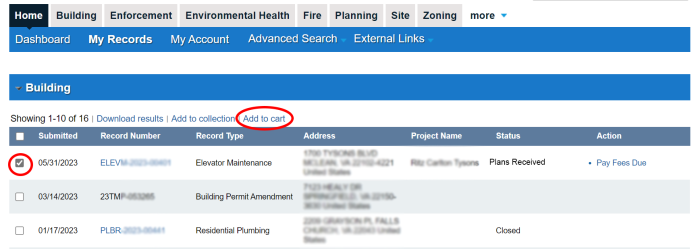
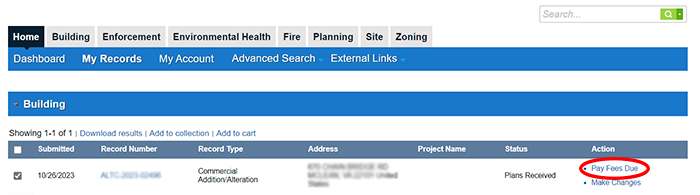
Login to your PLUS account and click on My Records to view your record list.


Click on Pay Fees Due in the Action column of the relevant record followed by Checkout.


Note: Pay fee balances due on multiple records in one single transaction by checking the box to the left of the record followed by Add to Cart. Multiple records can be added to your shopping cart following the same steps.


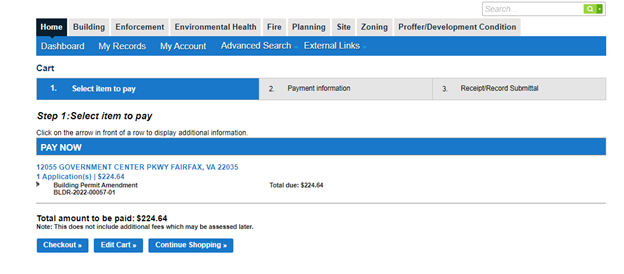
Click on Cart at the top of the screen when ready to complete the payment transaction.


Click on Checkout to pay the fees due.

Note: Click on Edit Cart to remove any records from the shopping cart if needed or on Continue Shopping to add more records to your cart before making payment.


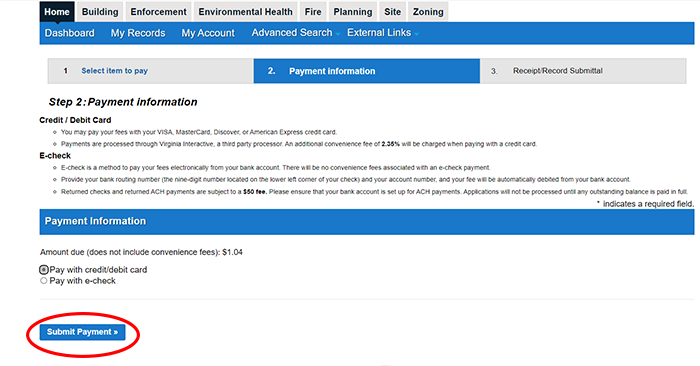
Select Pay with credit/debit card (a 2.35% convenience fee will be added) or Pay with e-check. Click Submit Payment.


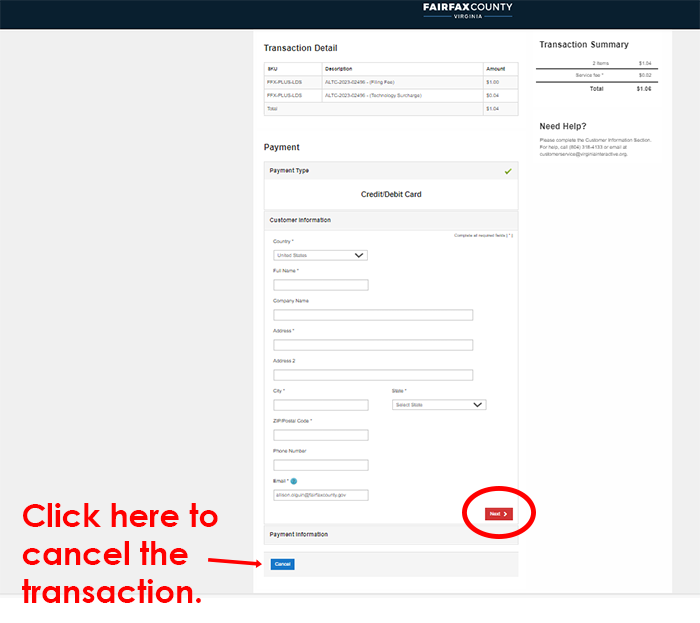
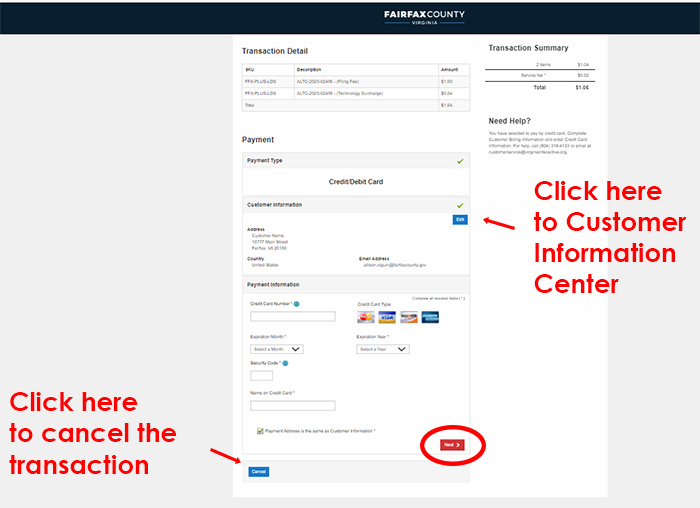
Fill in the required Customer Information fields and click Next.


Fill in required Payment Information fields and click Next.


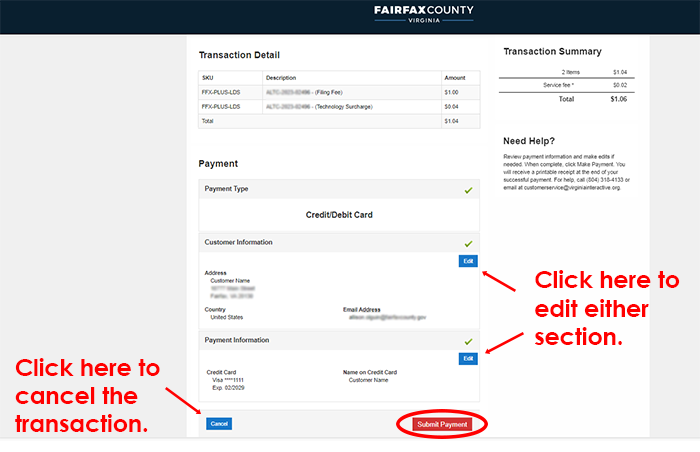
Review the Payment details. Click Edit to make changes to Customer Information or Payment Information, Cancel to cancel the transaction, or Submit Payment to complete the payment transaction.


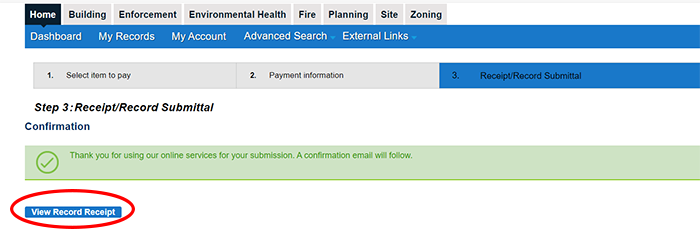
You will receive a payment receipt via email. Additionally, you can click on View Record Receipt to view/print the receipt.


Respond to Issues

Open the record details by clicking directly on the record number on the payment confirmation screen to open the record details.


Note: If Step 2 is not completed immediately following Step 1, the record can be found again in the My Records list or by entering the record number in the Global Search box.


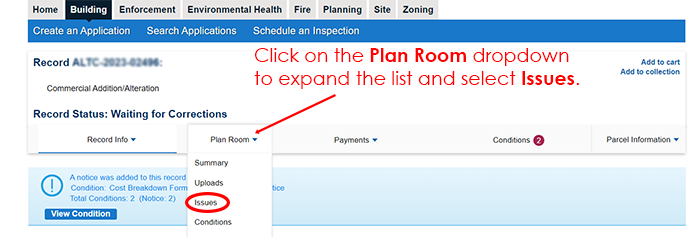
Click on the Plan Room dropdown to expand the list and select Issues.


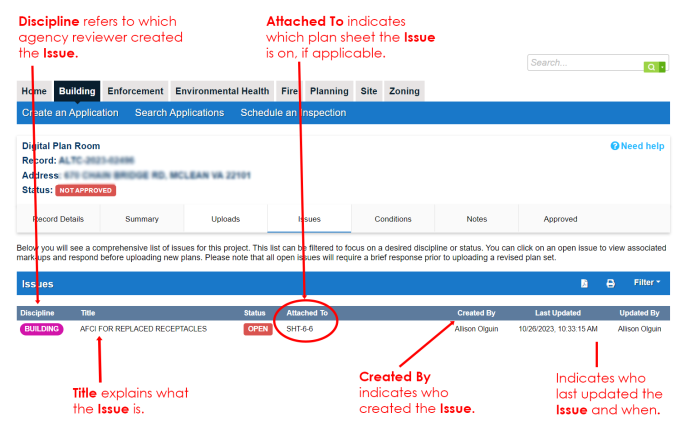
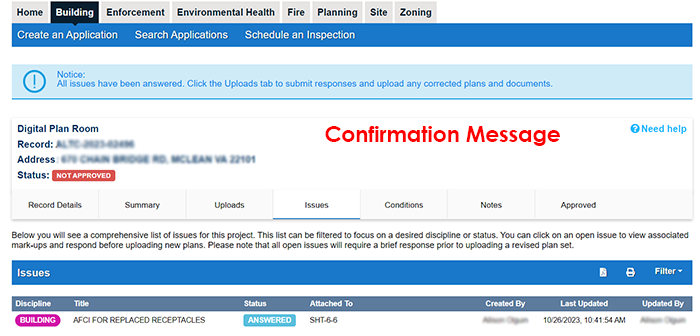
A comprehensive list of Issues will display. Any Issue with a status of OPEN requires a response. Click anywhere on the Issue line to open the details of that issue.

Open:  Applicant response required

Answered:  Applicant has provided a response

In Review:  Corrections submitted by applicant have been received and are being reviewed

Not Accepted:  Correction submitted by applicant did not satisfactorily address the violation or issue

Accepted:  Correction provided by applicant satisfactorily addressed the violation or issue

Closed:  No longer relevant

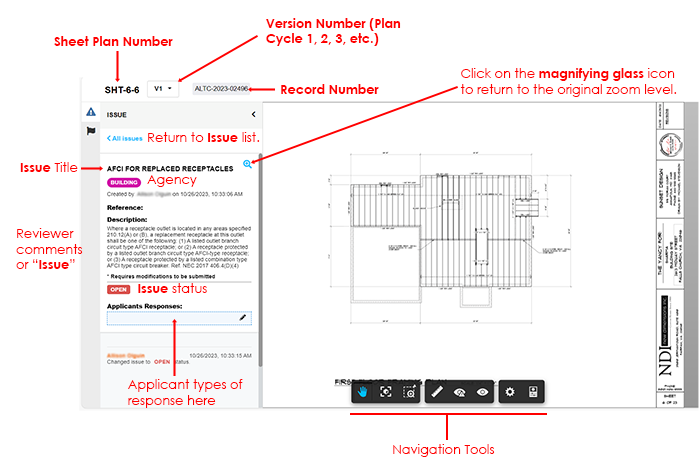
The individual Issue details display when you open an Issue.


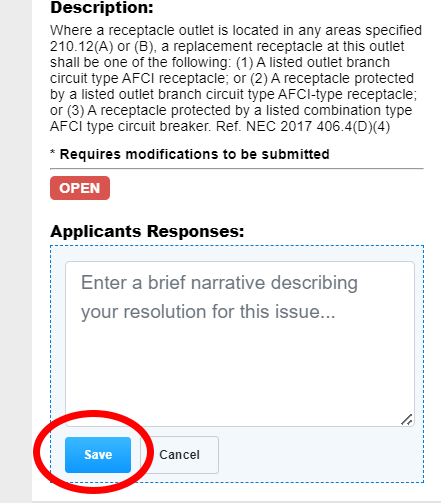
Click in the Applicant Responses box to open the box. Type in your response and click Save.


After clicking Save the details will close and you will see that the Issue now shows a status of Answered in the list. Repeat the process for each individual OPEN issue.


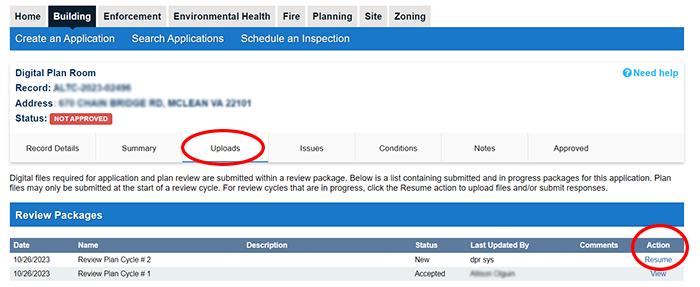
Click on the Uploads tab, then on Resume in the Action column of the new Review Plan Cycle.


Information

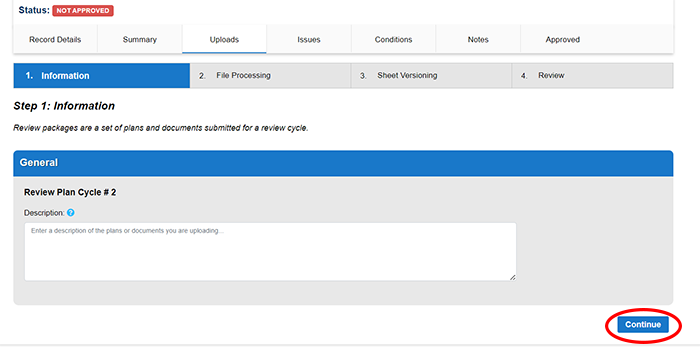
An optional description of the plans and documents being uploaded may be entered in the Description box. Click Continue to proceed to the next step.


File Processing

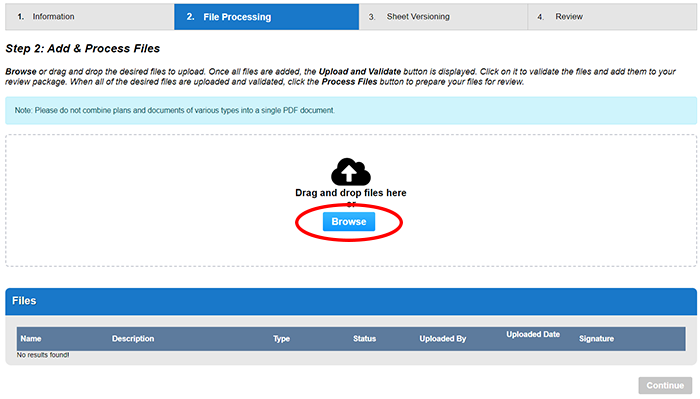
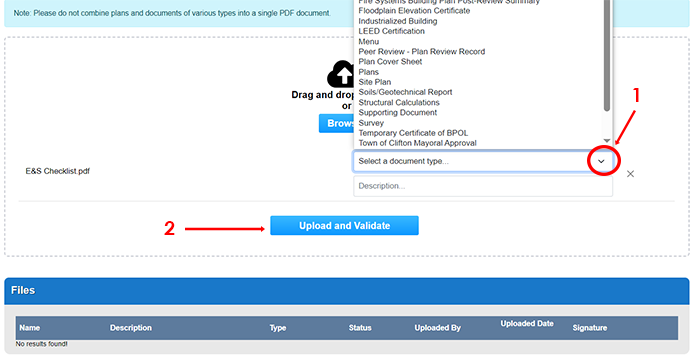
Click Browse to upload files from your computer or simply drag and drop files to the box below.

Note: Only new plan sheets or plan sheets with corrections should be submitted.


Once the files have been added to the file box, a document type must be selected from the drop-down list for each individual file. Click on Upload and Validate to proceed.


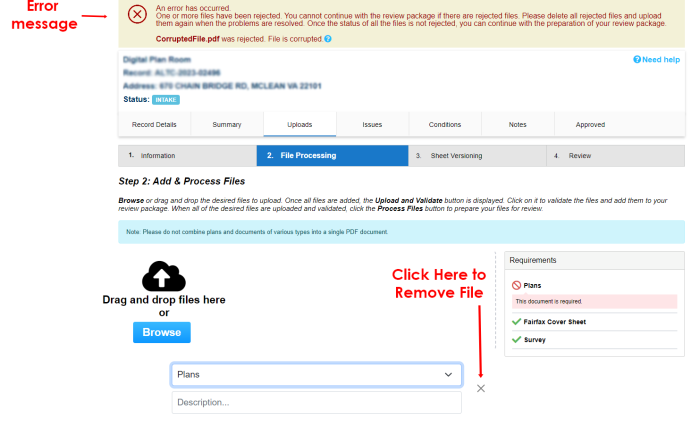
Due to an invalid file type when you click Upload and Validate, remove the file by clicking on the "X" to the right of the file and follow the steps above to add the appropriate acceptable file type listed.


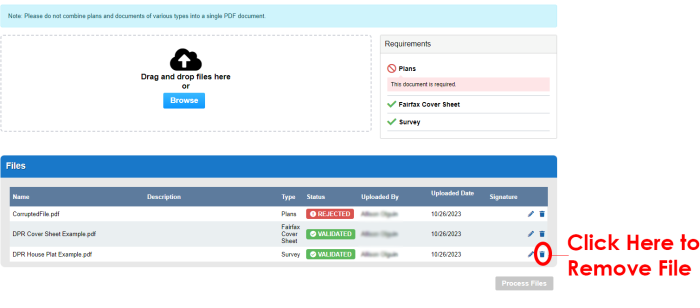
If you receive an error message due to a corrupted file when you click Upload and Validate, remove the rejected file by clicking on trashcan icon to the right of the file and follow the steps above to add a file that is not corrupted.

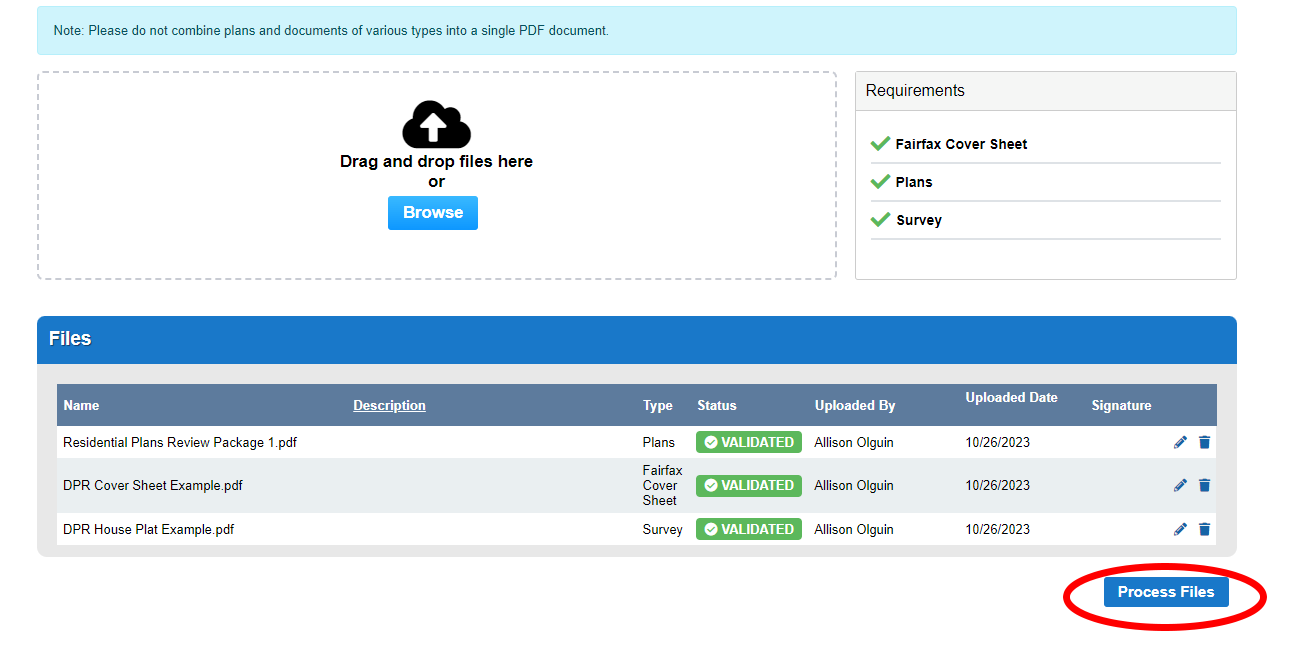
Once the uploaded files display the green Validated status, click Process Files to continue.

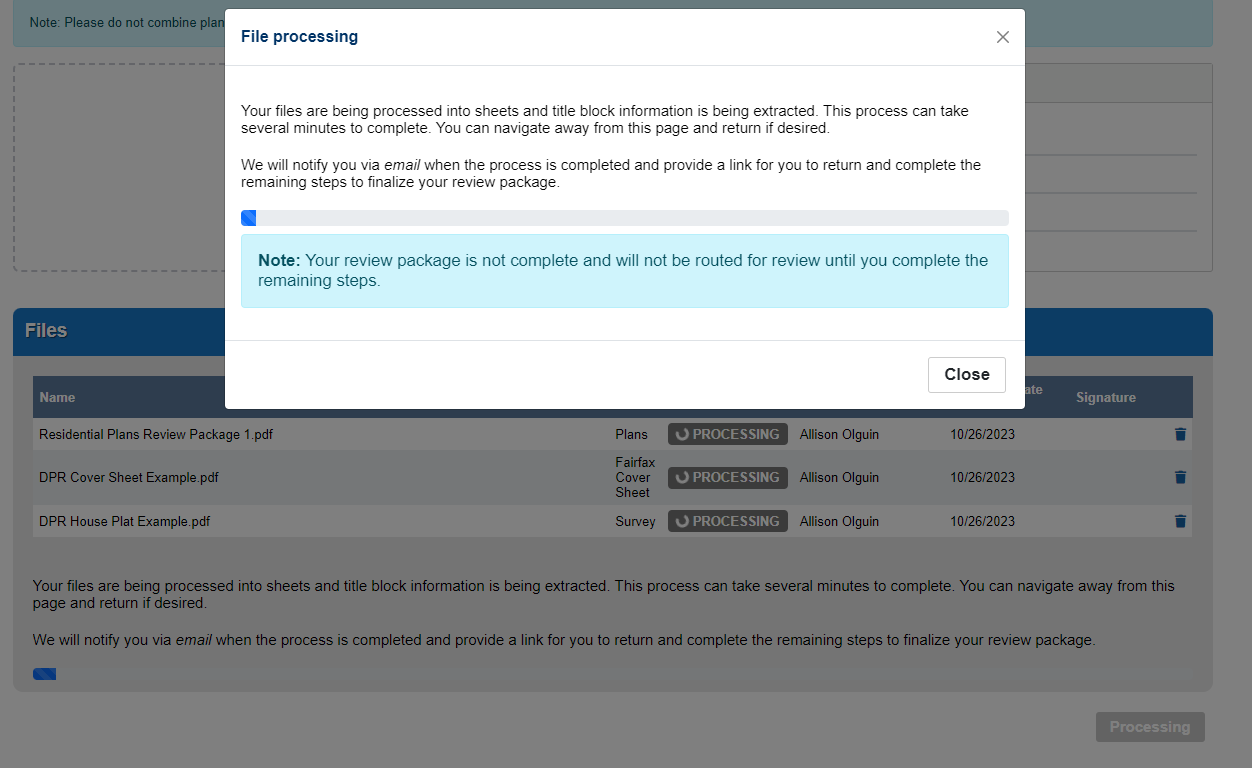
File processing can take several minutes. The process will continue if you navigate away from the page, and you can return to the DPR to complete the submission later.

Note: Your review package submission is not complete until you return to the DPR and complete the remaining steps.

Sheet Versioning

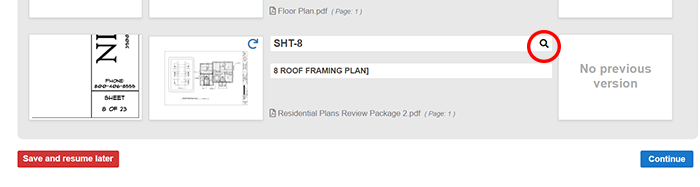
Individual plan sheets must be numbered. PLUS will scan each sheet for title information and assign a sheet number if one can be found. If one is not recognized by the system, you will have to manually enter the sheet number. Additionally, each page must have a unique sheet number and will need to be manually corrected if duplicated. An optional sheet title can be entered for each sheet.

Note: Sheet versioning is a very important step when submitting corrected plan sheets as the sheet number will establish the relationship between the previous versions of a sheet and the updated sheet. The sheet number given to the updated sheet must be the same as the previous version for the system to recognize the relationship between the sheets. If there is no sheet displayed in the Previous Version thumbnail, it is because the sheet number changed between versions. The sheet number should be manually changed to the correct number to match the original.


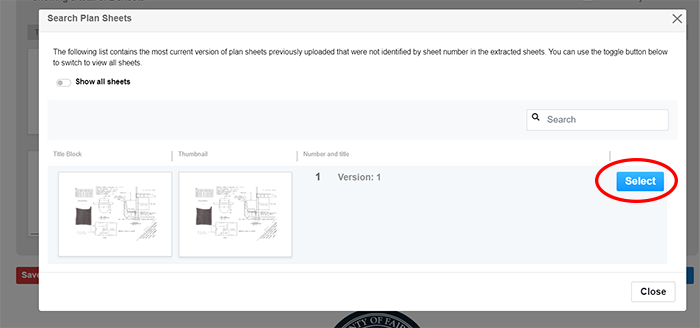
If the sheet number is not the same, there will be no previous version showing in the thumbnail on the right. To manually search for the correct sheet number, click on the search (magnifying glass) icon and click Select next to the appropriate sheet.


Once all individual sheets are numbered correctly click Continue to proceed to Step 4.


Review

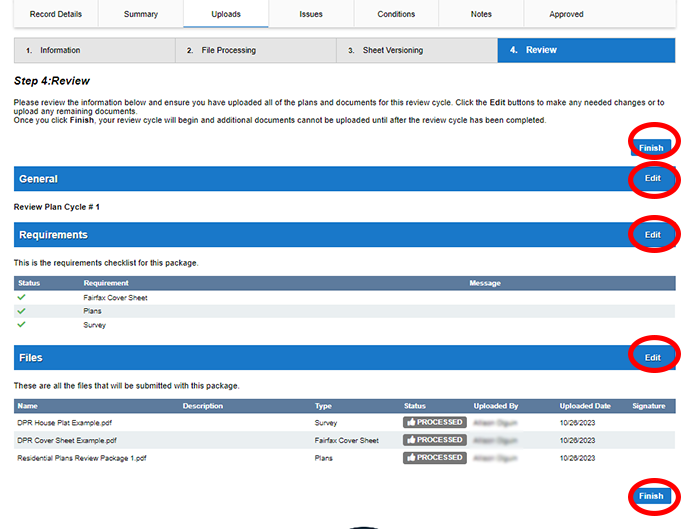
This is your final opportunity to review your review package prior to submission. Click on Edit to return to a section requiring changes. Click Finish when ready to submit.


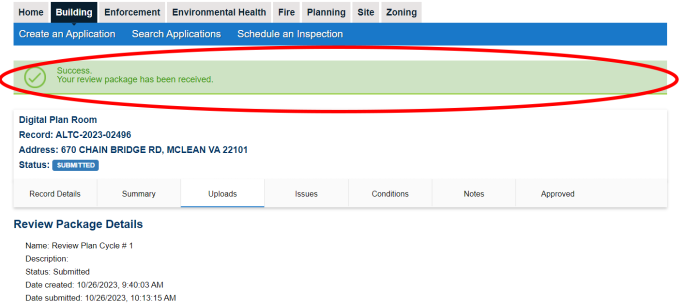
Note: Your review package submission is not complete until your receive the green ribbon indicating successful submission. You will also receive a confirmation email from PLUS.


Need Help? Call 703-222-0801, TTY 711.

Monday through Thursday from 8 a.m. to 4 p.m. and Friday from 9:15 a.m. to 4 p.m.


  • LDS Permit Library:  Access guides to navigate every record type in PLUS.
  • Letters to Industry:  Subscribe for LDS announcements, notices, and tech bulletins.
  • Meet With Staff:  Find a staff member to help you with the permit process.

Recent Interactions

    Ask Fairfax

    Terms & Conditions
    Live chat available Search our site
    • Translate
    • Awards
    • Site Feedback
    • PRIVACY POLICY & COPYRIGHT
    Main Address

    12000 Government Center Pkwy
    Fairfax, VA 22035

    Phone

    703-324-7329

    TTY 711

    Site Tools
    • Website Accessibility
    • Translate
    • Download Mobile App
    Support
    • ADA Accessibility
    • FOIA Requests
    • Website Administrator
    Additional Resources
    • Fairfax County Public Schools
    • Economic Development Authority
    • Visit Fairfax
    • Council of Governments
    • Commonwealth of Virginia
    • USA.gov
    • Calendar
    • Channel 16
    • Mail
    • Security
    • WIFI
    • Facebook
    • Twitter
    • Instagram
    • YouTube
    • Mobile

    The Official Site of Fairfax County